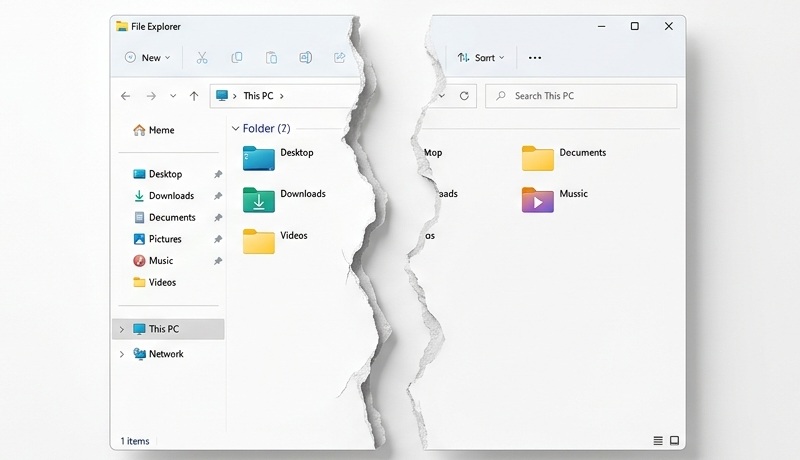
When you launch the Explorer, it might display the interface for a second, but crashes and closes the window.
This might be due to:
- Out-dated network connections
- Corrupt files and references in the “Recent” files section.
- Disconnected or not reachable destinations, such as network drives that are only available under certain network (work vs. home) locations.
To resolve this, set the Explorer to display the “This PC” hard drive by default when it starts:
- Press the “Win” button on the keyboard > then type: “Folder Options” as a search term.
- From the search results, click “File Explorer Options (Control Panel)”.
- ON the File Explorer Options > General tab, set the “Open File Explorer to” as: “This PC”.
- Click OK to close.
Additionally, on the same dialog box, on the View tab > you can activate the checkbox for: “Always show icons, never thumbnails” – in case there are issues with file preview on the machine.